The Chromebook Kiosk
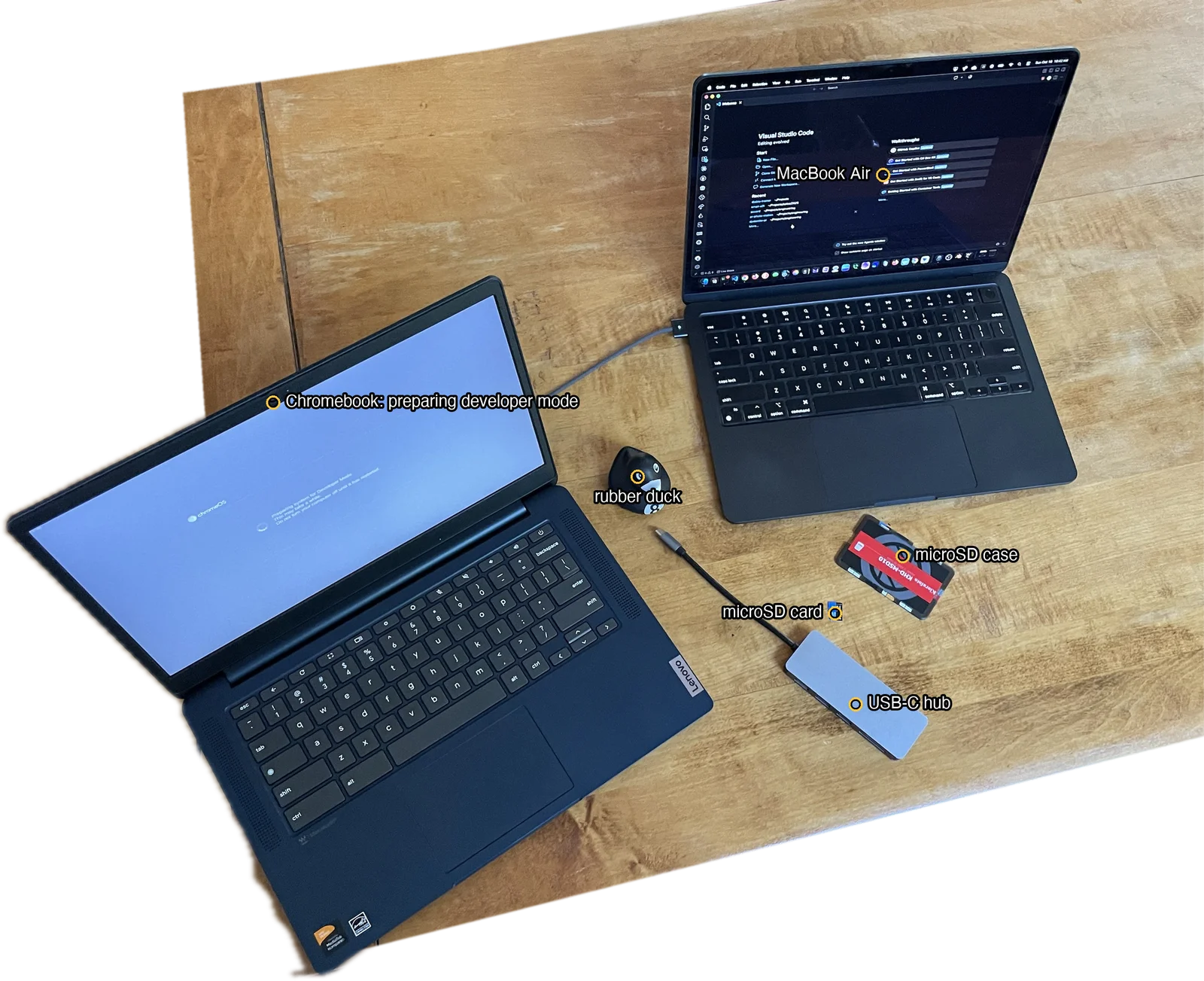
| Device | Lenovo IdeaPad Slim 3 Chromebook 14M868 (board "magneton", MAGNETON-LCKC), built June 2025 |
|---|---|
| Chip | MediaTek Kompanio 520 (MT8186): 2 Cortex-A76 cores at 2.05 GHz, 6 Cortex-A55 at 2.0 GHz |
| Graphics | Arm Mali-G52 MC2 (open-source panfrost driver on Linux) |
| Memory, storage | 4 GB LPDDR4X, 64 GB eMMC, microSD slot |
| Screen | 14-inch, 1920 by 1080 |
| Wireless, power | Wi-Fi 6, Bluetooth; charges over USB-C (asks for 15 V) |
| Price | About $200 new, around $130 used (October 2026) |
1A Chromebook with no job
I bought this Chromebook for an idea that didn't take off: work more like a thin client, so I could hand an employee or a contractor a laptop and they'd have everything ready to go. Since then it has mostly sat around. It's the Lenovo in the table above: a $200 laptop.
The new job is smaller: a screen I can set on a countertop anywhere in the house, showing one web page. Mostly things I'd look at in the morning, dashboards I'm trying out, served from my own machines.
2Kiosk mode costs a subscription
ChromeOS has a true kiosk mode: boot straight into one page, no login, no browser controls. But it only works on a managed device. That means a Google admin account on a domain you own, a license of $25 per device per year, enrolling the Chromebook in Google's console, and setting the page from there. Enrollment also sticks: a factory reset doesn't undo it.
Everything else on this project runs on machines in the house, so paying Google yearly for a console that controls what my kitchen screen shows was the wrong direction. Google is also folding ChromeOS into Android. So the question became whether it could run plain Linux instead, with a browser opened full screen at startup.
3ARM changes the route
Most guides for putting Linux on a Chromebook start by replacing its firmware, which only works on Intel and AMD models. This one has a MediaTek Kompanio 520, an ARM chip, and keeps Google's own bootloader, which only starts kernels packaged in its required format.
The good news is that the board, codenamed Magneton, has been in the mainline Linux kernel since early 2024, added by Google and Collabora engineers. postmarketOS, a Linux distribution for phones and small devices, builds images for this family of Chromebooks that the stock bootloader can start from a USB stick or a microSD card. Partway through this, I found out postmarketOS had renamed itself Nura three weeks earlier.
4Developer mode
Booting anything that isn't ChromeOS starts with developer mode, which wipes the Chromebook. No firmware gets touched at this stage, so if Linux doesn't work out, a ChromeOS recovery puts it back the way it was.
There was nothing on it worth keeping: when I signed in one last time, ChromeOS couldn't even sync because my sign-in had gone stale, so I signed out. Then, with the Chromebook on, I held Esc + Refresh (the circular arrow) and pressed Power. It restarted into a recovery screen, and Ctrl + D started the switch. A message said it was transitioning to developer mode and that local data had been cleared, then it sat on "Preparing system for developer mode" for several minutes before restarting on its own.
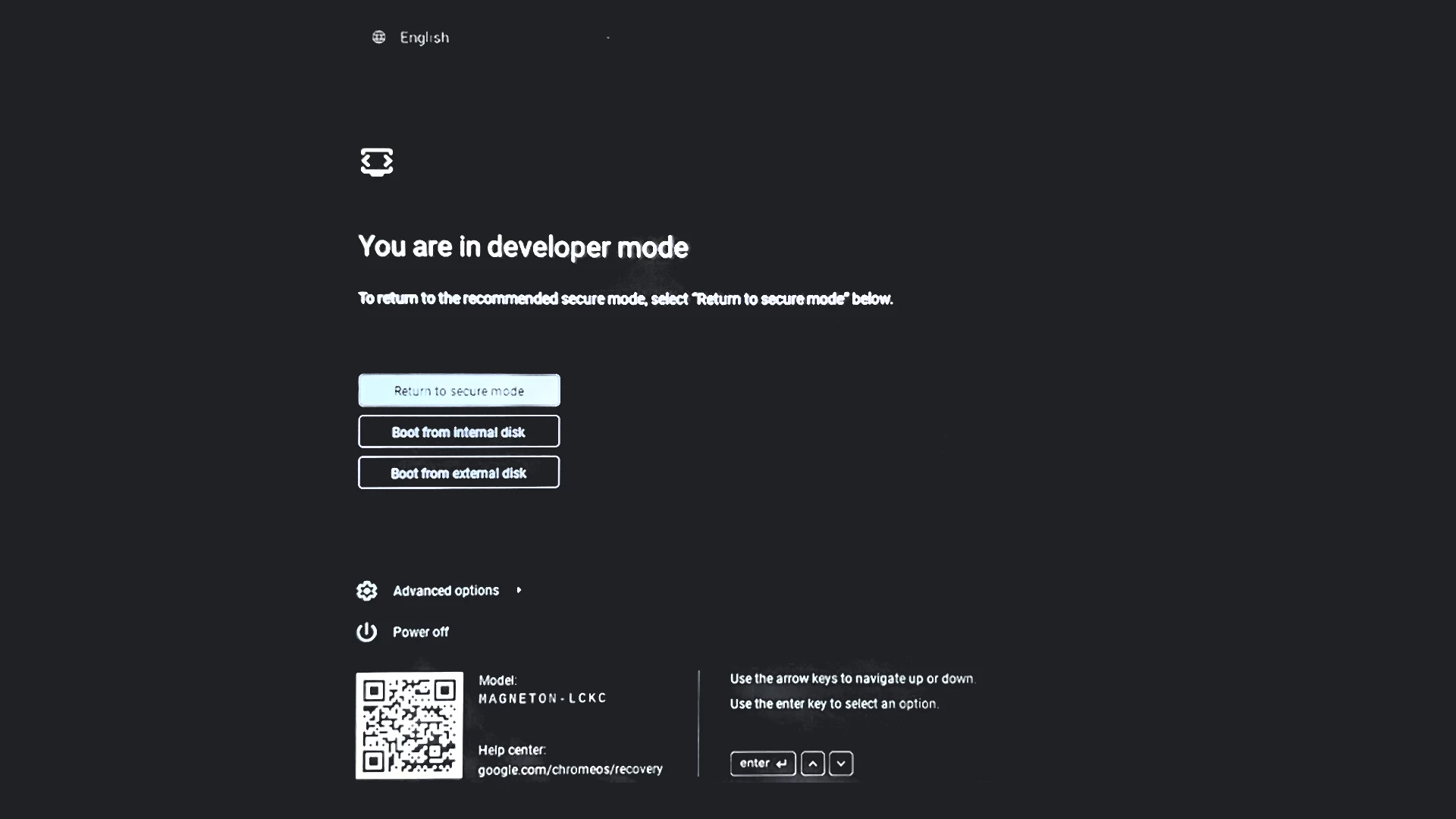
From then on, every boot stops at this screen first. The model line confirms the board: Magneton. "Boot from internal disk," or waiting out the timer, starts ChromeOS as usual.
5Letting it boot from the card
The screen has a "Boot from external disk" button, but it won't work until a setting allows it, and that setting is changed from inside ChromeOS. Developer mode adds a text console. The usual instructions say Ctrl + Alt + the forward-arrow key, but this keyboard has no forward arrow; Refresh sits in that spot and does the job. My first tries did nothing because I was pressing it at the firmware's developer mode screen: the console only exists once ChromeOS is running. At ChromeOS's welcome screen, without signing in, Ctrl + Alt + Refresh worked, and the console opens with its own instructions:
Developer Console

To return to the browser, press:

  [ Ctrl ] and [ Alt ] and [ <- ]  (F1)

To use this console, developer mode must be enabled.
Doing so will destroy any saved data on the system.

In developer mode, it is possible to
- login and sudo as user 'chronos'
- require a password for sudo and login(*)
- disable power management behavior (screen dimming):
  sudo initctl stop powerd
- install your own operating system image!

* To set a password for 'chronos', run the following as root:

chromeos-setdevpasswd

If you are having trouble booting a self-signed kernel, you may need to
enable USB booting.  To do so, run the following as root:

enable_dev_usb_boot

Have fun and send patches!

localhost login: root
Logged in as root, the one command it lists does the job:
magneton-rev3 ~ # enable_dev_usb_boot

    SUCCESS: Booting any self-signed kernel from SSD/USB/SDCard slot is enabled.

    Insert bootable media into USB / SDCard slot and press Ctrl-U in developer
    screen to boot your self-signed image.

magneton-rev3 ~ # crossystem dev_boot_usb
1
The 1 means booting from the card is on. I left the console there until the card was ready, then typed reboot.
6A card with a past
The spare microSD card in the drawer wasn't blank. It came out of an old Android phone and still held 9 GB: photos from 2015, Mandelbrot renders from a fractal zoom app, and, in the folder of an app called Lapse It, ten time-lapses I'd shot on that phone in March 2015, eleven years before the Raspberry Pi time-lapse camera. Most of the 9 GB turned out to be a podcast app's downloaded episodes, which didn't need saving. The other 2 GB did.
The plan was to put it on the backup drive, along with an earlier card's 60 GB that had been waiting on my Mac since the start of the month. The backup drive had other ideas. Partway through checking the copy, it stopped answering reads: folder listings still worked, but reading a file just hung. It froze on two different USB hubs, so the drive itself goes on the list to look at. The card's files went to the Mac's internal drive instead, and every one was checked against the card before anything else happened to it: 4,192 files, none missing, none different.
7Writing the image
Nura publishes ready-made images for this family of Chromebooks, Google's "corsola" boards, at images.nura.eco/bpo/: pick the release (v26.06), google-corsola, a desktop, and the newest dated build. I took the GNOME build, 670 MB, because a full desktop is the quickest way to see what works: screen, keyboard, touchpad, Wi-Fi. Each image comes with a checksum file, and the download matched it.
Then the card, on the Mac: find its disk number, unmount it, and write the image straight onto the raw card. xz came from Homebrew.
$ shasum -a 256 -c 20261016-0243-postmarketOS-v26.06-gnome-4-google-corsola.img.xz.sha256
20261016-0243-postmarketOS-v26.06-gnome-4-google-corsola.img.xz: OK
$ diskutil list external physical
/dev/disk4 (external, physical):
   0:     FDisk_partition_scheme                        *32.0 GB    disk4
$ diskutil unmountDisk /dev/disk4
$ xz -dc 20261016-0243-postmarketOS-v26.06-gnome-4-google-corsola.img.xz | sudo dd of=/dev/rdisk4 bs=4m && sync && diskutil eject disk4
The one thing to get right is /dev/rdisk4: dd writes to whatever disk you name, so it's worth checking twice that it's the card and not something that matters. It prompted for my Mac password, printed nothing for a few minutes, and ejected the card.
8It boots
Card in the Chromebook's slot, reboot in the console, and "Boot from external disk" at the developer screen (Ctrl + U does the same). A green triangle and "Loading," then "Starting," then a GNOME login screen with one user, named user, and the image's default password, 147147. Then a full Linux desktop: Firefox in the dock, the keyboard and touchpad working, the screen at its full resolution. The welcome card still says postmarketOS. The rename hasn't reached everything yet.
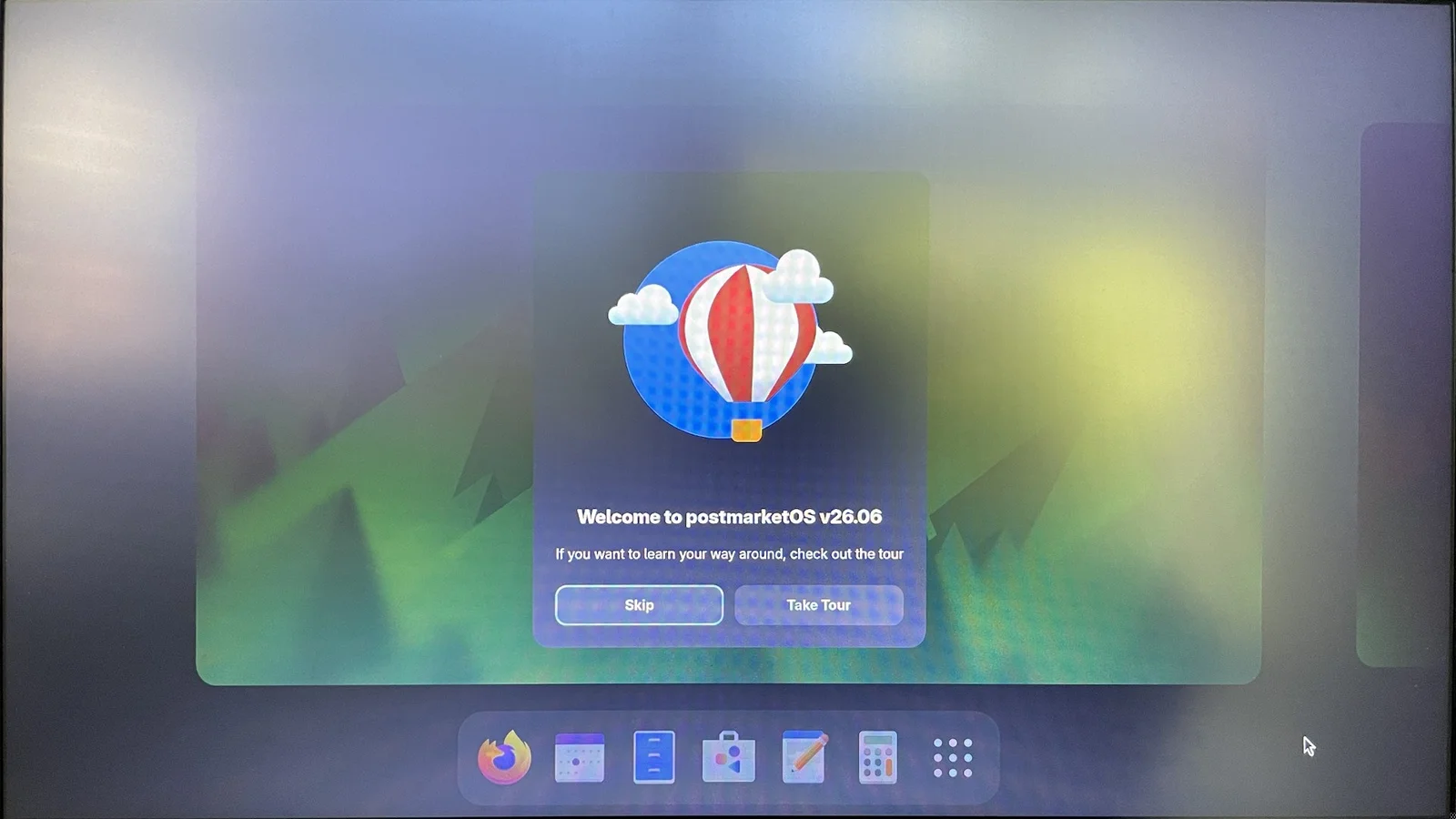
I skipped the tour and joined Wi-Fi from the quick settings in the top-right corner. The battery read 91%, on the Raspberry Pi's 5 V power supply; the label asks for 15 V, but USB-C chargers agree on a voltage before sending one, so a weaker charger only charges slowly. (I left the charger from a mini PC in the drawer: some of those put a fixed voltage on USB-C without negotiating.) The clock said 3:24 PM on the wrong day, and once online it jumped to the right day, still four hours ahead: the image runs on GMT.
9Letting the Mac in
From here I wanted to work from the Mac, which means SSH. In the Console app, first the Chromebook's address on the network:
~ $ ip -4 addr | grep inet
    inet 127.0.0.1/8 scope host lo
    inet 192.168.1.201/24 brd 192.168.1.255 scope global dynamic noprefixroute wlan0
The image doesn't come with an SSH server, so I installed one and started it (the sudo password is the same 147147):
~ $ sudo apk add openssh-server
~ $ sudo systemctl enable --now sshd
Then my Mac's public key, so it can log in without a password. The Mac served a folder holding only that key with python3 -m http.server 8656, and the Chromebook fetched it. The image has no curl, which cost one try, but BusyBox's wget does the same thing:
~ $ mkdir -p ~/.ssh && wget -qO- http://192.168.1.196:8656/key.pub >> ~/.ssh/authorized_keys
The Mac stopped serving the key as soon as it was in. That was the last thing I typed on the Chromebook.
10Finishing from the Mac
Everything after that went over SSH. The Chromebook's shell is BusyBox ash, which is stricter than the Mac's, so commands stay plain sh.
$ ssh user@192.168.1.201
~ $ sudo timedatectl set-timezone America/New_York
~ $ date
Sun Oct 18 11:37:43 EDT 2026
Instead of a password I'd have to remember, the LLM coding tool generated a one-line shell command that drew 24 random letters and digits from the Mac's /dev/urandom and saved them straight into the new project's .env file (which never goes into git), so the password never went into the model's input. A second command set it on the Chromebook with chpasswd, passing it over SSH's input so it never appeared on a command line. The default 147147 stopped working.
Then a name. There may be more kiosks, so this one is kiosk- plus four random letters and digits: kiosk-q0m7. Setting the hostname wasn't quite enough; the service that answers .local names had to restart to pick it up.
~ $ sudo hostnamectl set-hostname kiosk-q0m7
~ $ sudo systemctl restart avahi-daemon
$ ssh user@kiosk-q0m7.local hostname
kiosk-q0m7
For the record: 3.8 GB of memory with 2.7 GB free with the desktop running, 2.1 GB used of the card's 28 GB, and Linux 6.18, the mainline kernel.
11Where my hands stop
Until SSH answered, everything on the Chromebook happened with my fingers on its keyboard, because nothing else could reach it. Looking back, the manual part is a short, specific list:
- Esc + Refresh + Power, then Ctrl + D, to turn on developer mode.
- Ctrl + Alt + Refresh for the console, logging in as root, and typing the one command that allows booting from the card.
- Running the image write on the Mac, since it needs my password.
- Moving the card over, rebooting, and picking "Boot from external disk."
- Joining Wi-Fi, and typing three commands in the new system's terminal: install the SSH server, start it, and fetch my Mac's public key.
Everything else I did from an LLM coding tool in a terminal on the Mac, giving the instructions myself. With it I looked up the board's name, searched the kernel patches, checked the image server after the rename, backed up the card, and generated the commands I typed; once SSH answered, the commands ran over SSH. From here on I run the whole project by voice: I say what I want, and the tool runs the commands on the Mac and on the kiosk.
That held for about an hour. The first reboot test sent me back to the keyboard: the developer screen's timer booted ChromeOS instead of the card, and the fix, one crossystem setting, can only be made from ChromeOS's own console. So the manual list grew by one: Ctrl + Alt + Refresh, root, crossystem dev_default_boot=usb, reboot. It's the same kind of step as the rest of the list, keystrokes on a screen nothing else can reach, which is the case for the USB keyboard idea below.
The manual list is short enough to automate too. Every item on it is keystrokes, plus one card swap. A small board that plugs in over USB and presents itself as a keyboard (a Raspberry Pi Pico or a Pi Zero can do this) could type them, driven from the Mac. That's for a future kiosk: the second one should need my hands for even less.
12Booting straight to a page
The kiosk's pages will be Next.js, and they have to work offline: the device serves its own page, fetches live data when it can, and falls back to the last copy it saved when it can't. So the first page is built on the Mac into plain files and copied to the Chromebook, where BusyBox's small web server serves it on localhost. No Mac, no internet needed to show it.
For the display, the GNOME desktop is switched off at boot. In its place, cage, a display server that runs exactly one app full screen, runs Firefox in kiosk mode, with a profile that skips every first-run screen and prompt. Both are ordinary system services, so they start at boot and restart if they fall over. All of it lives in the project, and one script on the Mac drives it: setup installs it on the device, deploy builds the page and copies it over, and dev points the kiosk at the Mac's live development server, so an edit shows up on the counter as I save it. desktop brings GNOME back.
The first reboot came up in ChromeOS: the developer screen's timer boots the internal disk unless set otherwise, and it beeps at you while it waits. The setting lives in the firmware and has to be changed from ChromeOS's console, so one more trip there:
magneton-rev3 ~ # crossystem dev_default_boot=usb
magneton-rev3 ~ # crossystem dev_default_boot
usb
magneton-rev3 ~ # reboot
Now the developer screen highlights "Boot from external disk," and when its timer runs out, the Chromebook boots the card and lands on the page by itself, about half a minute after power-on. The page is a success screen, with a little game-style juice: letters that pop in and overshoot, a glow that pulses, fireworks that shake the screen and punch the title when they burst. This is it, running the same code as the kiosk:
13Next
- Smoothness. On the Chromebook the animation is choppy. The graphics chip has a working open-source driver (panfrost, for its Mali-G52), so the hardware is there; the likely culprits are Firefox drawing the canvas without the GPU, and the glow, which is expensive to draw. The goal is to use the hardware fully rather than cut the effects, and if the gap is in the drivers or the browser's support for this chip, maybe contribute a fix upstream.
- The 30-second wait and the beeps at the developer screen. Shortening them means a firmware flag, which needs the Chromebook's hardware write protection turned off.
- A keyboard that isn't me: a small USB board posing as a keyboard, to type the manual steps for the next kiosk.
- Dashboards: the morning pages, with each data source fetched live and its last copy kept for when the network is down.
Part 2: making it smooth.
| デバイス | Lenovo IdeaPad Slim 3 Chromebook 14M868(ボード名 "magneton"、MAGNETON-LCKC)、2025年6月製造 |
|---|---|
| チップ | MediaTek Kompanio 520(MT8186):2.05 GHz の Cortex-A76 コア×2、2.0 GHz の Cortex-A55×6 |
| グラフィックス | Arm Mali-G52 MC2(Linux ではオープンソースの panfrost ドライバー) |
| メモリ、ストレージ | 4 GB LPDDR4X、64 GB eMMC、microSD スロット |
| 画面 | 14インチ、1920×1080 |
| 無線、電源 | Wi-Fi 6、Bluetooth。USB-C で充電(15 V を要求) |
| 価格 | 新品で約200ドル、中古で130ドル前後(2026年10月) |
1仕事のない Chromebook
この Chromebook は、うまくいかなかったアイデアのために買いました。シンクライアントのような働き方をして、社員や業務委託の人にノートパソコンを一台渡せば、すぐに全部そろった状態で始められる、というものです。それ以来、ほとんど置きっぱなしでした。上の表の Lenovo、200ドルのノートパソコンです。
新しい仕事はもっと小さなものです。家のどこのカウンターにも置けて、ウェブページをひとつ表示する画面。主に朝に見るもの、試している最中のダッシュボードを、自分のマシンから配信します。
2キオスクモードにはサブスクリプションが要る
ChromeOS には本格的なキオスクモードがあります。ひとつのページに直接起動し、ログインもブラウザの操作部分もありません。ただし、管理対象のデバイスでしか使えません。つまり、自分が所有するドメインの Google 管理者アカウント、デバイス1台につき年25ドルのライセンス、Google の管理コンソールへの Chromebook の登録、そしてそこからのページ設定が必要です。しかも登録は残ります。工場出荷状態にリセットしても外れません。
このプロジェクトのほかの部分はすべて家の中のマシンで動いているので、キッチンの画面に何を映すかを管理するために Google のコンソールに毎年お金を払うのは、逆方向でした。Google は ChromeOS を Android に統合しつつもあります。そこで問題は、代わりに普通の Linux を動かして、起動時にブラウザを全画面で開けるかどうか、になりました。
3ARM だと道筋が変わる
Chromebook に Linux を入れるガイドの多くは、ファームウェアの入れ替えから始まります。これは Intel と AMD のモデルでしか使えません。この機種は ARM チップの MediaTek Kompanio 520 で、Google 自身のブートローダーをそのまま使います。このブートローダーは、決まった形式でパッケージされたカーネルしか起動しません。
良い知らせは、Magneton というコードネームのこのボードが、2024年初めから Linux のメインラインカーネルに入っていることです。Google と Collabora のエンジニアが追加しました。スマートフォンや小型デバイス向けの Linux ディストリビューションである postmarketOS は、この Chromebook ファミリー向けに、純正のブートローダーで USB メモリや microSD カードから起動できるイメージをビルドしています。作業の途中で、postmarketOS が三週間前に Nura へ改名していたことを知りました。
4開発者モード
ChromeOS 以外のものを起動するには、まず開発者モードにします。これで Chromebook は消去されます。この段階ではファームウェアには手を触れないので、Linux がうまくいかなくても、ChromeOS のリカバリーで元の状態に戻せます。
残しておく価値のあるものは何も入っていませんでした。最後に一度サインインしたとき、サインイン情報が古くなっていたせいで ChromeOS は同期すらできなかったので、サインアウトしました。それから Chromebook の電源が入った状態で Esc + Refresh(丸い矢印のキー)を押したまま Power を押しました。リカバリー画面で再起動し、Ctrl + D で切り替えが始まりました。開発者モードに移行中で、ローカルデータは消去されたと表示され、そのあと数分間 "Preparing system for developer mode" のまま止まってから、自動で再起動しました。
これ以降、起動のたびにまずこの画面で止まります。モデルの行で、ボードが Magneton だと確かめられます。"Boot from internal disk" を押すか、タイマーが切れるのを待つと、いつもどおり ChromeOS が起動します。
5カードからの起動を許可する
画面には "Boot from external disk" ボタンがありますが、設定で許可するまでは使えません。その設定は ChromeOS の中から変えます。開発者モードではテキストコンソールが使えるようになります。よくある手順では Ctrl + Alt + 進む矢印キーですが、このキーボードには進む矢印がありません。その位置には Refresh があり、それで代わりになります。最初の何回かは何も起きませんでした。ファームウェアの開発者モード画面で押していたからです。コンソールは ChromeOS が動いているときにしか存在しません。ChromeOS のようこそ画面で、サインインせずに Ctrl + Alt + Refresh を押すと開き、コンソールには使い方が表示されます。
Developer Console

To return to the browser, press:

  [ Ctrl ] and [ Alt ] and [ <- ]  (F1)

To use this console, developer mode must be enabled.
Doing so will destroy any saved data on the system.

In developer mode, it is possible to
- login and sudo as user 'chronos'
- require a password for sudo and login(*)
- disable power management behavior (screen dimming):
  sudo initctl stop powerd
- install your own operating system image!

* To set a password for 'chronos', run the following as root:

chromeos-setdevpasswd

If you are having trouble booting a self-signed kernel, you may need to
enable USB booting.  To do so, run the following as root:

enable_dev_usb_boot

Have fun and send patches!

localhost login: root
root でログインすると、コンソールに表示されたコマンドひとつで済みます。
magneton-rev3 ~ # enable_dev_usb_boot

    SUCCESS: Booting any self-signed kernel from SSD/USB/SDCard slot is enabled.

    Insert bootable media into USB / SDCard slot and press Ctrl-U in developer
    screen to boot your self-signed image.

magneton-rev3 ~ # crossystem dev_boot_usb
1
1 は、カードからの起動がオンになったという意味です。カードの準備ができるまでコンソールはそのままにしておき、それから reboot と打ちました。
6過去のあるカード
引き出しにあった予備の microSD カードは、空ではありませんでした。古い Android スマートフォンから出てきたもので、まだ 9 GB 入っていました。2015年の写真、フラクタルズームのアプリで描いたマンデルブロ集合の画像、そして Lapse It というアプリのフォルダーには、2015年3月にそのスマートフォンで撮ったタイムラプスが十本。Raspberry Pi のタイムラプスカメラより十一年前のものです。9 GB の大半はポッドキャストアプリがダウンロードしたエピソードで、これは残す必要がありませんでした。残りの 2 GB は残す必要がありました。
計画では、これをバックアップドライブに入れるつもりでした。月の初めから Mac で待っていた、前のカードの 60 GB と一緒に。バックアップドライブは、そうはさせてくれませんでした。コピーを確認している途中で、読み込みに応答しなくなったのです。フォルダーの一覧は出るのに、ファイルを読もうとすると止まってしまう。二つの別々の USB ハブで固まったので、ドライブ自体を調べることを「やることリスト」に加えました。カードのファイルは代わりに Mac の内蔵ドライブへ移し、ほかに何かする前に、一つ残らずカードと照合しました。4,192ファイル、欠けたものも違うものもなし。
7イメージを書き込む
Nura は、この Chromebook ファミリー、つまり Google の "corsola" ボード向けに、すぐ使えるイメージを images.nura.eco/bpo/ で公開しています。リリース(v26.06)、google-corsola、デスクトップ、そして日付が一番新しいビルドを選びます。私は GNOME のビルド、670 MB を選びました。画面、キーボード、タッチパッド、Wi-Fi と、何が動くかを確かめるには、フルのデスクトップが一番早いからです。どのイメージにもチェックサムのファイルが付いていて、ダウンロードしたものはそれと一致しました。
次は Mac でカードの作業です。ディスク番号を調べ、アンマウントし、イメージを生のカードに直接書き込みます。xz は Homebrew で入れました。
$ shasum -a 256 -c 20261016-0243-postmarketOS-v26.06-gnome-4-google-corsola.img.xz.sha256
20261016-0243-postmarketOS-v26.06-gnome-4-google-corsola.img.xz: OK
$ diskutil list external physical
/dev/disk4 (external, physical):
   0:     FDisk_partition_scheme                        *32.0 GB    disk4
$ diskutil unmountDisk /dev/disk4
$ xz -dc 20261016-0243-postmarketOS-v26.06-gnome-4-google-corsola.img.xz | sudo dd of=/dev/rdisk4 bs=4m && sync && diskutil eject disk4
間違えてはいけないのは /dev/rdisk4 の一点です。dd は指定したディスクに何でも書き込むので、それがカードで、大事なものではないことを二度確かめる価値があります。Mac のパスワードの入力を求められ、数分間何も表示せず、それからカードを取り出しました。
8起動した
カードを Chromebook のスロットに入れ、コンソールで reboot、開発者画面で "Boot from external disk"(Ctrl + U でも同じ)。緑の三角と "Loading"、次に "Starting"、そして GNOME のログイン画面。ユーザーは user という名前の一人だけで、パスワードはイメージのデフォルトの 147147。そしてフルの Linux デスクトップです。ドックに Firefox があり、キーボードとタッチパッドが動き、画面はフル解像度。ようこそカードにはまだ postmarketOS と表示されています。改名はまだすべてには行き渡っていません。
ツアーは飛ばして、右上のクイック設定から Wi-Fi に接続しました。バッテリーは 91%、電源は Raspberry Pi の 5 V 電源です。ラベルには 15 V とありますが、USB-C の充電器は電圧を送る前に相手と電圧を取り決めるので、弱い充電器ではゆっくり充電されるだけです。(ミニ PC の充電器は引き出しに置いたままにしました。あの手のものには、取り決めなしで USB-C に固定の電圧をかけるものがあるからです。)時計は違う日の午後3時24分を示していて、オンラインになると正しい日に変わりましたが、まだ4時間進んでいました。イメージは GMT で動いています。
9Mac から入れるようにする
ここからは Mac から作業したかったので、SSH が必要です。Console アプリで、まず Chromebook のネットワーク上のアドレスを調べます。
~ $ ip -4 addr | grep inet
    inet 127.0.0.1/8 scope host lo
    inet 192.168.1.201/24 brd 192.168.1.255 scope global dynamic noprefixroute wlan0
イメージには SSH サーバーが入っていないので、インストールして起動しました(sudo のパスワードは同じ 147147 です)。
~ $ sudo apk add openssh-server
~ $ sudo systemctl enable --now sshd
次に、Mac の公開鍵です。これで Mac からパスワードなしでログインできます。Mac はその鍵だけを入れたフォルダーを python3 -m http.server 8656 で配信し、Chromebook がそれを取ってきました。イメージには curl がなく、一回分の試行が無駄になりましたが、BusyBox の wget で同じことができます。
~ $ mkdir -p ~/.ssh && wget -qO- http://192.168.1.196:8656/key.pub >> ~/.ssh/authorized_keys
鍵が入るとすぐ、Mac は配信を止めました。私が Chromebook で打ったのは、これが最後です。
10Mac から仕上げる
そこから先はすべて SSH 経由です。Chromebook のシェルは BusyBox の ash で、Mac のものより厳しいので、コマンドは素の sh で書きます。
$ ssh user@192.168.1.201
~ $ sudo timedatectl set-timezone America/New_York
~ $ date
Sun Oct 18 11:37:43 EDT 2026
覚えておかなければならないパスワードの代わりに、LLM コーディングツールが一行のシェルコマンドを生成しました。Mac の /dev/urandom からランダムな英数字を24文字取り出し、新しいプロジェクトの .env ファイル(git には入れないファイル)に直接保存するものです。だからパスワードは一度もモデルの入力に入っていません。二つ目のコマンドで、chpasswd を使ってそれを Chromebook に設定しました。SSH の入力経由で渡すので、コマンドラインには一度も出てきません。デフォルトの 147147 は使えなくなりました。
次は名前です。キオスクは増えるかもしれないので、これは kiosk- にランダムな英数字4文字を足して kiosk-q0m7 にしました。ホスト名を設定するだけでは少し足りず、.local の名前に応答するサービスを再起動して、やっと反映されました。
~ $ sudo hostnamectl set-hostname kiosk-q0m7
~ $ sudo systemctl restart avahi-daemon
$ ssh user@kiosk-q0m7.local hostname
kiosk-q0m7
記録として:メモリは 3.8 GB で、デスクトップ動作中の空きは 2.7 GB。カードの 28 GB のうち使用は 2.1 GB。カーネルはメインラインの Linux 6.18 です。
11手を使うのはここまで
SSH がつながるまで、Chromebook での作業はすべて、そのキーボードに指を置いて行いました。ほかに届く手段がなかったからです。振り返ると、手作業の部分は短く、はっきりしたリストです。
- 開発者モードをオンにするための Esc + Refresh + Power、そして Ctrl + D。
- コンソールを開く Ctrl + Alt + Refresh、root でのログイン、そしてカードからの起動を許可するコマンドを一つ打つこと。
- Mac でのイメージ書き込みの実行。私のパスワードが必要なので。
- カードを差し替え、再起動し、"Boot from external disk" を選ぶこと。
- Wi-Fi への接続と、新しいシステムのターミナルで三つのコマンドを打つこと:SSH サーバーのインストール、その起動、Mac の公開鍵の取得。
それ以外はすべて、Mac のターミナルで動く LLM コーディングツールを使って私が行い、指示も私が出しました。それを使って、ボードの名前を調べ、カーネルのパッチを検索し、改名後のイメージサーバーを確認し、カードをバックアップし、私が打つコマンドを生成しました。SSH がつながってからは、コマンドは SSH 経由で実行されました。ここから先、このプロジェクトはすべて声で進めます。私がしたいことを言い、ツールが Mac とキオスクでコマンドを実行します。
それが続いたのは一時間ほどでした。最初の再起動テストで、またキーボードに戻されました。開発者画面のタイマーがカードではなく ChromeOS を起動したのです。直すには crossystem の設定をひとつ変えるだけですが、それは ChromeOS 自身のコンソールからしかできません。そこで手作業のリストが一つ増えました。Ctrl + Alt + Refresh、root、crossystem dev_default_boot=usb、reboot。リストのほかの項目と同じ種類の手順、ほかに何も届かない画面へのキー入力です。これが、下に書く USB キーボードのアイデアの理由です。
手作業のリストは、自動化できるくらい短くもあります。どの項目もキー入力で、あとはカードの差し替えが一回だけ。USB でつないでキーボードとして振る舞う小さなボード(Raspberry Pi Pico や Pi Zero でできます)なら、Mac から操作してそれを打てるはずです。それは次のキオスクの話です。二台目では、私の手はもっと要らなくなるはずです。
12ページへ直接起動する
キオスクのページは Next.js で作る予定で、オフラインでも動く必要があります。デバイスが自分でページを配信し、できるときはライブのデータを取りに行き、できないときは最後に保存したコピーを使います。そこで最初のページは Mac でただのファイルにビルドして Chromebook にコピーし、そこで BusyBox の小さなウェブサーバーが localhost で配信します。表示するのに Mac もインターネットも要りません。
表示については、GNOME デスクトップを起動時にオフにしました。代わりに、ひとつのアプリだけを全画面で動かすディスプレイサーバーの cage が、Firefox をキオスクモードで動かします。Firefox のプロファイルは、初回起動の画面や確認をすべて飛ばすようにしてあります。どちらも普通のシステムサービスなので、起動時に立ち上がり、落ちたら再起動します。すべてプロジェクトの中にあり、Mac のスクリプトひとつで操作します。setup はデバイスにインストールし、deploy はページをビルドしてコピーし、dev はキオスクを Mac のライブの開発サーバーに向けるので、編集を保存するとそのままカウンターの画面に出ます。desktop で GNOME に戻ります。
最初の再起動では ChromeOS が立ち上がりました。開発者画面のタイマーは、設定しない限り内蔵ディスクを起動し、待っている間はビープ音を鳴らします。この設定はファームウェアにあって、ChromeOS のコンソールから変える必要があるので、もう一度そこへ行きました。
magneton-rev3 ~ # crossystem dev_default_boot=usb
magneton-rev3 ~ # crossystem dev_default_boot
usb
magneton-rev3 ~ # reboot
これで開発者画面は "Boot from external disk" が選ばれた状態になり、タイマーが切れると Chromebook はカードから起動して、電源を入れてから30秒ほどで自分でページにたどり着きます。ページは成功画面で、ゲームのような演出が少し入っています。文字が飛び出して行き過ぎては戻り、光が脈打ち、花火がはじけるたびに画面が揺れてタイトルが弾みます。これがそれで、キオスクと同じコードで動いています。
13次にやること
- なめらかさ。Chromebook ではアニメーションがカクカクします。グラフィックスチップには動くオープンソースのドライバー(Mali-G52 用の panfrost)があるので、ハードウェアはそろっています。原因として考えられるのは、Firefox が GPU を使わずにキャンバスを描いていることと、描画の重い光の効果です。目標は効果を削ることではなくハードウェアを使い切ることで、足りないのがドライバーやブラウザーのこのチップへの対応なら、上流に修正を送れるかもしれません。
- 開発者画面での30秒の待ち時間とビープ音。短くするにはファームウェアのフラグが必要で、そのためには Chromebook のハードウェア書き込み保護をオフにしなければなりません。
- 私ではないキーボード:キーボードのふりをする小さな USB ボードに、次のキオスクの手作業を打たせる。
- ダッシュボード:朝のページ。データソースごとにライブで取得し、ネットワークが落ちているときのために最後のコピーを残しておく。
第2回:なめらかにする
Want the next one?
New posts by email, now and then. Nothing else.